How to control the camera in AI video (prompts that actually move)
The camera move is the single biggest lever in an AI video prompt, and most people leave it out. Here are the exact instructions that direct the shot.
By Ideovex Team
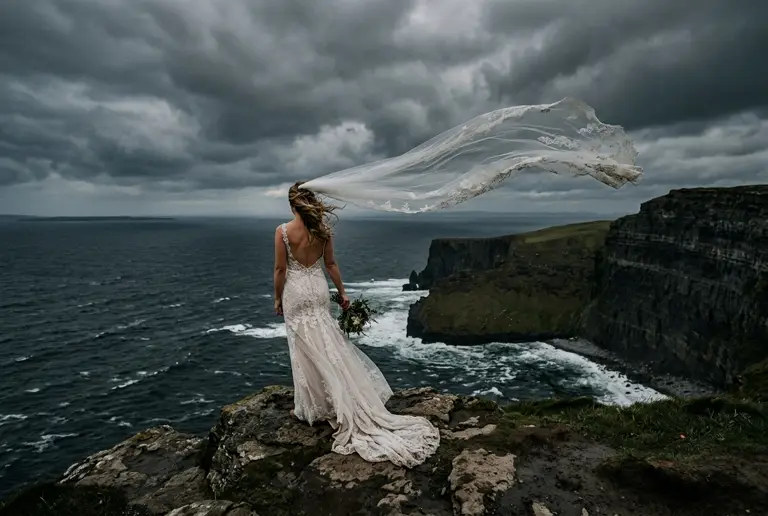
To control the camera in AI video, name one camera move and one subject action, and nothing else. Write the move the way a director would — slow push in, handheld drift right, locked off, no camera movement — instead of describing the scene the model can already see. One clear instruction produces a clean shot; three competing ones produce mush.
Why does my AI video barely move, or move too much?
Both failures come from the same cause: the prompt described the picture instead of directing the motion. A video model over-animates by default, so a vague prompt gives you drift and warping; a purely descriptive prompt gives you a near-still frame. The fix is to write instructions, not adjectives — verbs for the camera and verbs for the subject.
The camera moves worth naming
These are the instructions that reliably read as a deliberate shot:
slow push in/slow pull back— the dolly move that adds tension or reveals context.pan left/pan right— the camera rotates in place.crane up to reveal/tilt down— vertical moves for scale.handheld drift— a small, organic wobble that reads as documentary.orbit around the subject— the product-shot move.locked off, no camera movement— the most underused instruction here. Ask for stillness and let the subject carry the motion.
Text-to-video or image-to-video for camera control?
Image-to-video gives you more control for less money. A video render is far dearer than a still — 60 credits for a fast clip, 140 for a standard one — so text-to-video gambles the composition and the motion in one shot. Generate the first frame as a still until it is right, then send it to an image-to-video model and describe only the movement. You already know the look; you are only directing the camera.
A prompt that works, taken apart
Slow push in. She turns her head toward the window. Locked framing, no handheld. Slow, deliberate pace.
One camera move (push in), one subject action (turns her head), one constraint (no handheld) and a pace note. Nothing about her hair, the room or the light — the frame already carries all of that. That restraint is what separates a shot from a scramble.
Fixing the four common failures
- Nothing moves — the prompt was descriptive. Cut every adjective and leave the verbs.
- Everything moves — add
locked off cameraand give the subject exactly one action. - Faces melt near the end — shorten the clip, or push the subject further from camera so fewer pixels carry the identity.
- The camera fights the subject — you asked for two moves. Pick one for the camera, one for the subject.
Do it once, then repeat it
Once a camera recipe works, save the whole configuration — prompt, model, duration — as a Studio Preset so the next clip in the sequence is a thirty-second job. Explore camera moves on the free experimental video pool at zero credits, then run the keeper on a premium engine. Start in the image-to-video studio, or read the wider still-to-motion workflow.